
Word Blaster Classroom: teacher guide
Run a live, game-show-style spelling round with your whole class. You project a room code, students join on their own devices with just a first name, and everyone spells the same words at the same moment.
- No student accounts
- Nothing about students is stored
- Up to 40 students per class
- Teacher accounts are invite-only during the pilot

1 What Classroom mode is
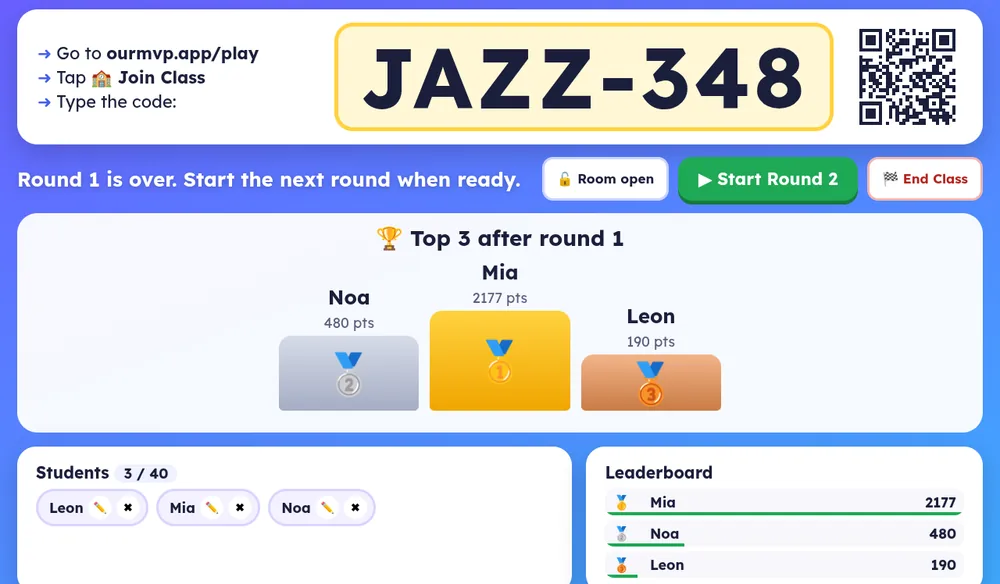
Classroom mode turns Word Blaster into a live, whole-class spelling game. Your screen (a laptop connected to a projector or classroom display) shows a big room code, the list of students who have joined, a live leaderboard, and a top-3 podium after each round.
Each student plays on their own tablet, Chromebook, laptop or phone. When you start a round, every device gets the same words at the same moment after a short countdown. Students spell each word in the Word Blaster typing game, see their own score, and then see the podium and their own place.
2 What you need
- A teacher account. Teacher accounts are invite-only during the pilot and there's no public sign-up. To ask about joining, email support@ourmvp.app.
- A computer for the teacher screen, ideally connected to a projector or large display.
- A device for each student (each joined device plays as one name) with a recent browser (Chrome, Edge, Safari or Firefox) and internet access.
- Sound (optional): words can be read aloud using each device's built-in voice, so headphones help in a busy room.
3 Sign in at ourmvp.app/teach
- On your computer, open ourmvp.app/teach.
- Under Teacher sign-in, type your Email and Password, then click Sign in.
- If you see “This account is not set up as a teacher yet.”, your account isn't on the pilot's teacher list. Email support@ourmvp.app.
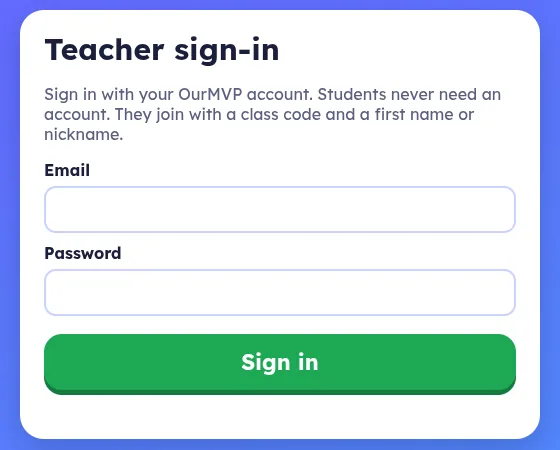
Your sign-in is kept only for that browser tab. Click Sign out at the top right when you're done, especially on a shared computer.
4 Pick your words & settings
- Under 1. Pick your words, choose a Word list (sample lists are included, and any Word Blaster lists saved to your account appear as well), or paste or type your own words in the box, one per line or separated by commas.
- Under 2. Settings, choose Words per round (5 to 15) and Time per round (1 to 5 minutes).
- Click ▶ Start Class.
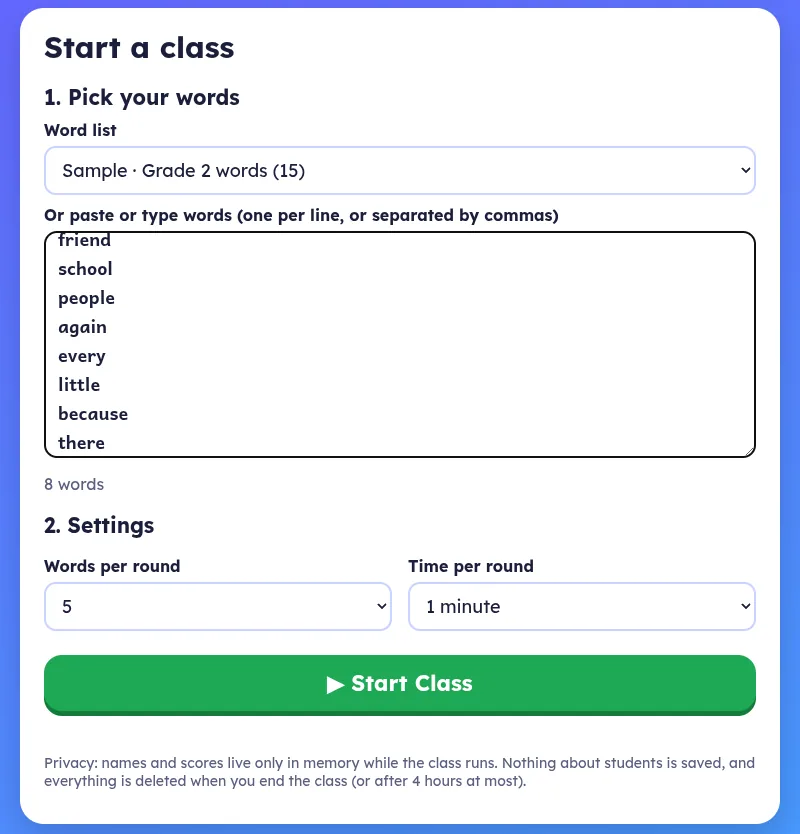
Tip: each round uses the next words from your list, so a 15-word list with 5 words per round gives you three different rounds.
5 Project the code & QR
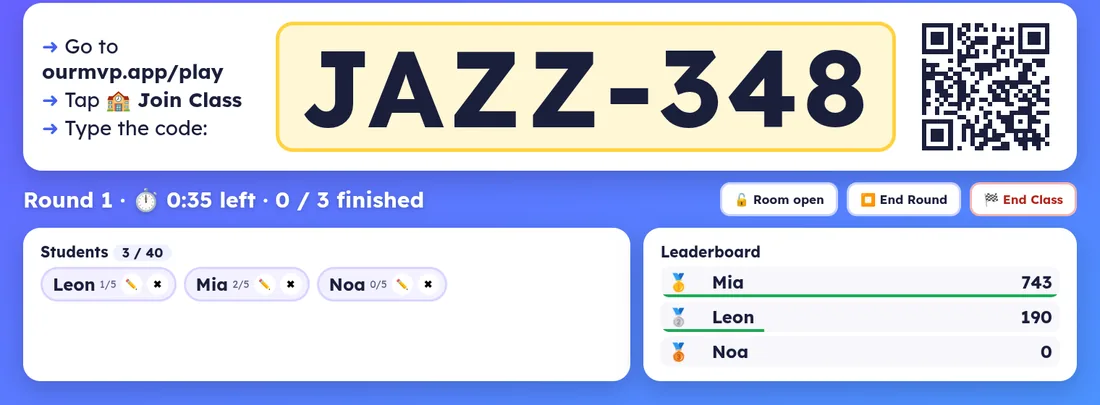
After you click Start Class, your screen shows a large room code (a word and three numbers, like JAZZ-348), a QR code, and simple instructions: Go to ourmvp.app/play ➜ Tap 🏫 Join Class ➜ Type the code. Put this screen on the projector.
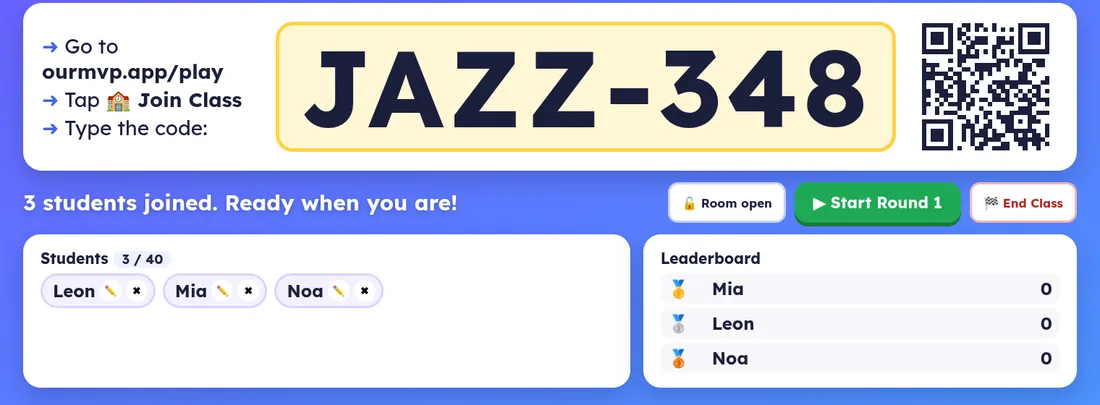
Codes are random, work only for your class, and stop working as soon as the class ends.
6 How students join (no accounts)
- On their device, students open ourmvp.app/play, or scan the QR code, which fills in the code for them.
- They tap 🏫 Join Class on the menu. On a device that has never used Word Blaster, it's 🏫 Join a Class on the Welcome card, and no setup is needed.
- They type the Class code (capitals and the dash don't matter) and their first name or a nickname, then tap Join! ➜.
- They see “You're in, …!” and wait for you to start the round.
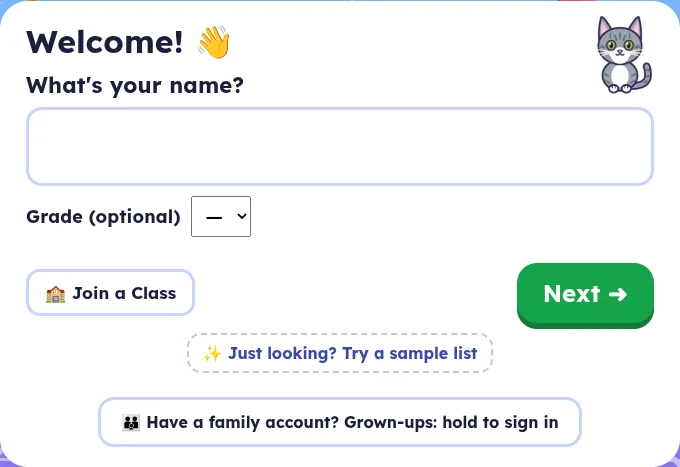
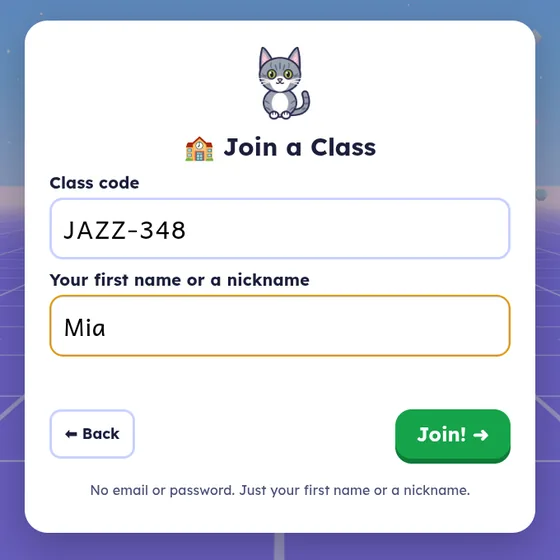
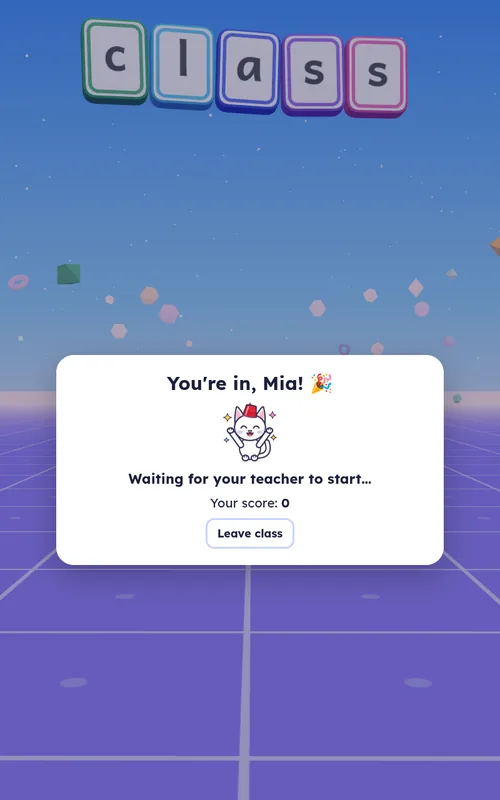
Name rules: letters only, up to 12 characters, a first name or nickname (no numbers, emails or last names needed). Rude or unkind names are refused with a friendly “Let's pick a different name.” Two students can't use the same name in one class.
7 Roster: rename, remove, lock
Each student appears as a chip under Students (with a count out of 40).
- ✏️ Rename: fixes a typo or a silly name. Type the new name and click Rename. The new name goes through the same name filter, and the student's screen updates.
- ✖ Remove: takes a student out of the class (click Remove to confirm). Their device shows “Your teacher took you out of this class.”, and they can't rejoin that class with that name or device.
- 🔓 Room open / 🔒 Room locked: click it to lock the room once everyone is in. New students then see “This class is locked right now.” Students who were already in can still reconnect if their device drops.
8 Rounds, leaderboard & podium
- Click ▶ Start Round 1. Every device counts down for about 4 seconds, then shows the same words at the same moment.
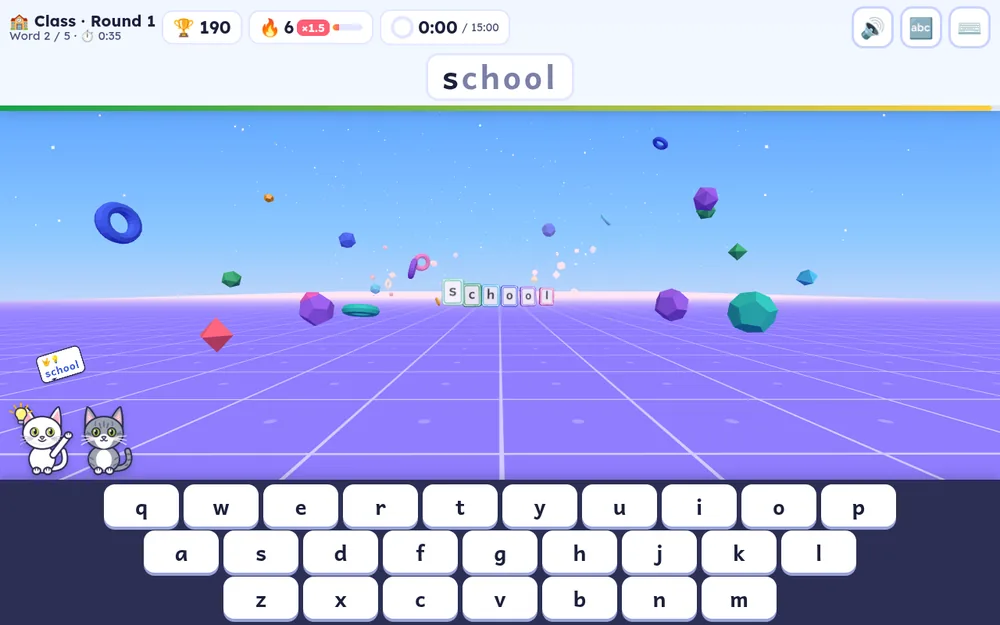
- Students type each word in Word Blaster. Their screen shows 🏫 Class · Round 1, which word they're on, and the time left. A correct word scores points (faster typing scores more), and a missed word scores nothing and moves on.
- Your Leaderboard updates live while students play, with a progress bar for each student.
- The round ends when everyone has finished or the time runs out. Click ⏹ End Round to stop it early.
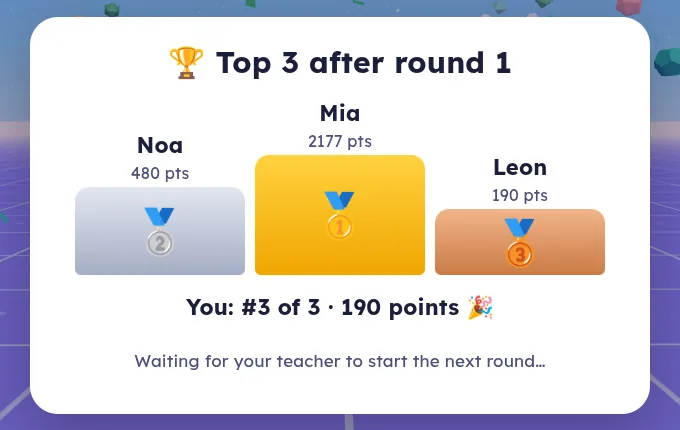
- Every screen shows the top-3 podium, and each student also sees their own place (for example “You: #3 of 24”). Click ▶ Start Round 2 when you're ready for the next words.
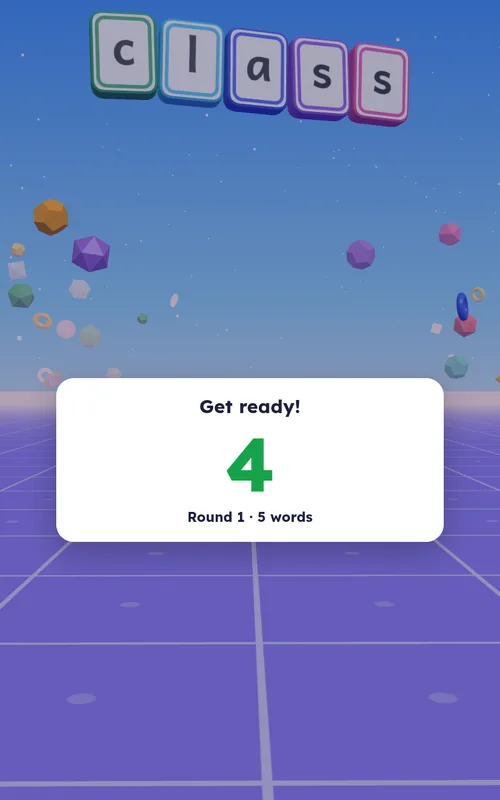
Class rounds have no pause button (everyone plays together), and they never change the student's own Word Blaster players, stars or stickers on that device.
9 Ending the class
- Click 🏁 End Class, then 🏁 End Class again in the box that asks “End the class?”
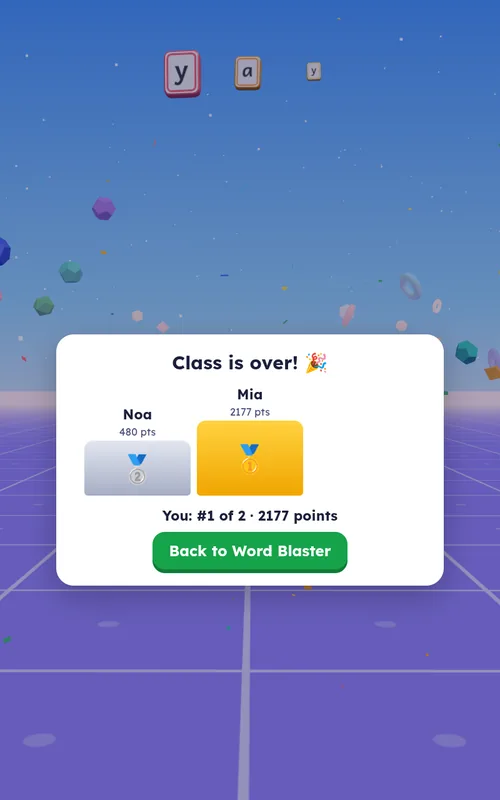
- Students see “Class is over! 🎉” with the final podium and tap Back to Word Blaster.
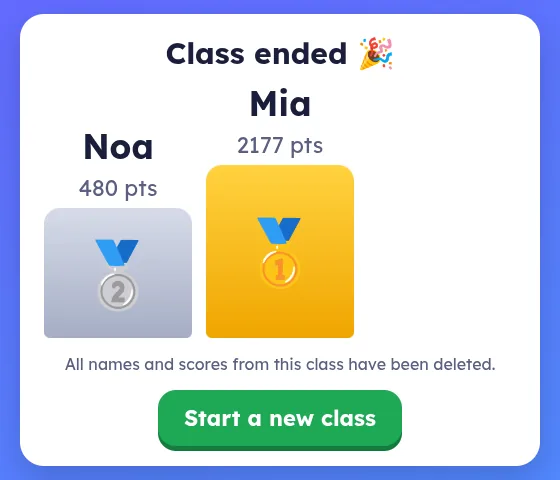
- Your screen shows “Class ended 🎉” and “All names and scores from this class have been deleted.” Click Start a new class to run another one.
10 Tips for a smooth class
- Do a 2-minute test run first with one device, so you know what students will see.
- Shared Wi-Fi and mistyped codes: on a school network, all devices usually share one internet address. To stop code guessing, about 25 wrong codes within 10 minutes from one network pause new joins from that network for 10 minutes. Write the code big, read it out, and use the QR code where you can. Students already in the class are not affected.
- Dropped devices reconnect by themselves and keep their score. If a student reloads or their tablet drops off Wi-Fi, they rejoin with the same name, even if the room is locked. A “📶 Reconnecting…” banner shows while it tries.
- If your own computer reloads, open ourmvp.app/teach and sign in again. Your class comes back as long as it's still running.
- Classes end automatically: after 4 hours at most, or after 45 minutes with no teacher screen connected. A server restart or update also ends any class in progress. If that happens, just click Start Class again and share the new code.
- Read-aloud uses each device's built-in voice, so voices differ from device to device. Turn volumes down or use headphones in a busy room.
- Big classes: up to 40 students per class.
11 Safety & privacy
Classroom mode was designed so that there's nothing about students to keep. Here's exactly how it works:
- No student accounts. Students never enter an email, password, last name or any other personal details. They type a class code and a first name or nickname.
- Nothing about students is stored. Names and scores live only in the server's memory while the class runs. They aren't written to a database or to disk.
- Rooms are temporary. Ending the class deletes the room, every name and every score immediately. Rooms that are never ended are deleted automatically after 4 hours at most (or 45 minutes without the teacher). Room codes stop working when the room is gone.
- No chat. Students can't send messages to each other or to anyone else. The only text a student enters is their name.
- Name filter. Names must be letters only and up to 12 characters, and rude or unkind words are blocked. You can rename or remove anyone.
- Only you control the room. Only the signed-in teacher who started the class can lock it, start or end rounds, rename or remove students, or end the class. This is checked by the server on every action, not just on your screen.
- No names in logs. The classroom service's logs record only room codes and counts (such as “round started, 24 students”), never student names, and the web server doesn't log classroom connections.
- Students' own progress is untouched. Class rounds don't change the Word Blaster players, stars or stickers saved on a student's device, and the class's temporary join token is cleared from the device when the class ends.
- No ads, no trackers, no analytics on the site or in the game.
- Teacher data: your email and password are used only to sign you in.
12 School approval & contact
Check with your school first. Many schools, districts and boards require approval before a new app or website is used with students. Please check your school's policy and get any approval you need before using Word Blaster Classroom in class. You're welcome to share this page, which describes our data practices, with whoever reviews it.
Questions, a teacher account for the pilot, or something to report? Email support@ourmvp.app.
13 FAQ
A student says the code doesn't work
Check that they're on ourmvp.app/play and typed the code exactly (capitals and the dash don't matter). If the room is locked, click 🔒 Room locked to open it. If lots of wrong codes were typed on the school network, new joins pause for 10 minutes. Use the QR code next time.
A student's name was refused
Names must be letters only (no numbers), up to 12 characters, and not already used in the class. The filter is cautious, so once in a while an innocent name is blocked. Ask them to try another first name or nickname, or let them join and use ✏️ Rename.
A tablet froze or went to sleep
Wake it and reload the page. It rejoins automatically with the same name and score. If needed, the student can tap Join Class again with the same code and name.
Can students play the class words at home afterwards?
Classroom mode keeps nothing after the class. Families can add the same list to Word Blaster at home. See the parent guide.
Does it work on iPads and Chromebooks?
It runs in the browser. We test on Chrome on Android tablets, phones and laptops, and any recent Chrome, Edge, Safari or Firefox should work. Try one device before class.
Can I get a teacher account?
Teacher accounts are invite-only while we pilot Classroom mode. Email support@ourmvp.app.
Ready to try it? Sign in on your classroom computer and start a class.
🏫 Teacher sign-in