
Word Blaster parent guide
Everything a grown-up needs to set up Word Blaster at home: your child's weekly list, the games, the rewards, more than one player, and how your family's information is handled.
- Free while in testing
- No kid accounts
- Tablets, phones & computers
- About 10 minutes to set up

1 What Word Blaster is
Word Blaster is a spelling game built around the list your child brings home from school. You add this week's words, and your child practises them in short, colourful games: letter tiles that blast apart, scrambled words to fix, a practice test, and a daily challenge. Every word can be read aloud, and a crew of cartoon cats cheers them on.
It was built by a dad for his own 5th grader and is now being tested with a few more families. It has no ads, no trackers, and your child never needs an email address or password.
The short version: open ourmvp.app/play, type your child's first name or a nickname, add this week's words (or try the sample list), and let them play about 15 minutes a day.
2 Getting started
Word Blaster runs in the web browser, so there's nothing to install. It works on Android tablets, iPads, phones, Chromebooks and computers with a recent version of Chrome, Edge, Firefox or Safari.
- On your child's device, open ourmvp.app/play.
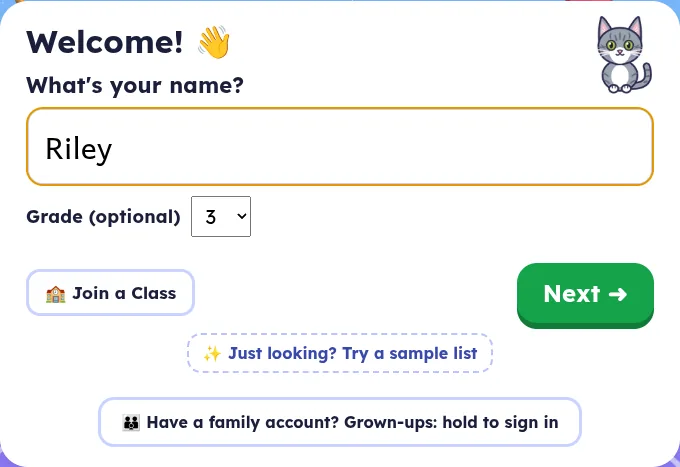
- On the Welcome! 👋 card, type your child's first name or a nickname under What's your name? A nickname is fine. You never need their full name.
- Pick their Grade (optional) if you like.
- Tap Next ➜ to add this week's words now (see section 3), or tap ✨ Just looking? Try a sample list to jump straight into the game with 10 sample words. You can add your real list later.
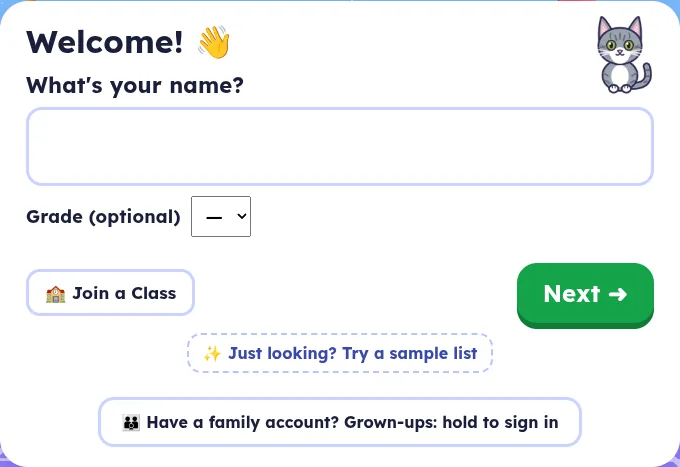
Already have a family account? On a new device, press and hold 👪 Have a family account? Grown-ups: hold to sign in before typing a name. Your children's players and lists then come down from the account (see section 8).
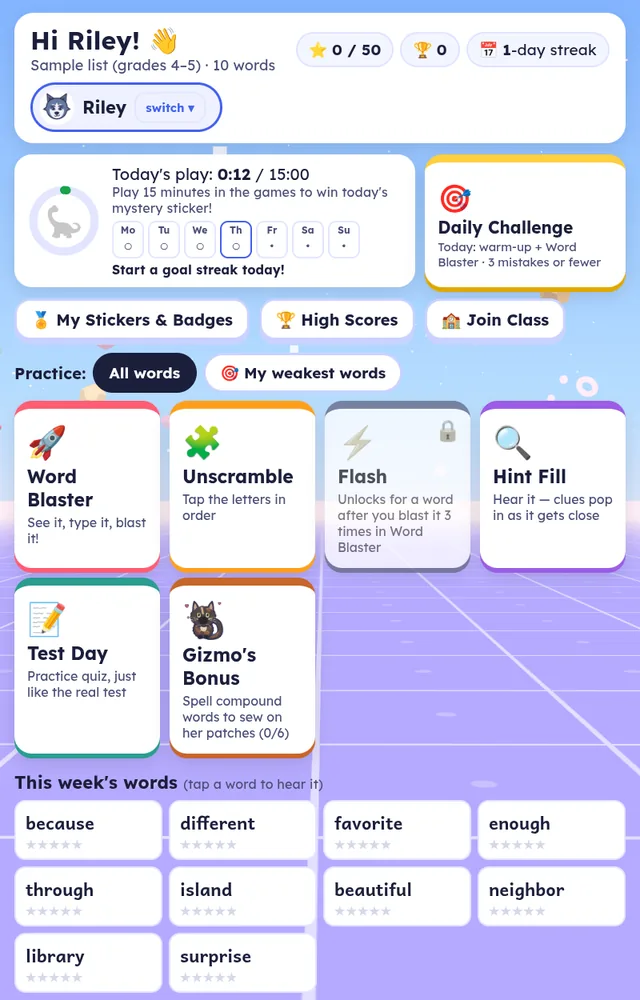
After setup you land on the menu. It shows today's play time toward the daily goal, the Daily Challenge, the game modes, and this week's words (tap any word to hear it).
Tip: make it feel like an app. Android Chrome: tap the ⋮ menu, then Add to Home screen. iPad or iPhone Safari: tap Share, then Add to Home Screen. It then opens full-screen from its own icon.
3 Adding your child's weekly list
There are three ways to add a list: paste or type it, take a photo of the paper, or pick a photo you already have. You can add it during the first-run setup (after Next ➜), or any time from the Grown-ups area.
From the Grown-ups area (the usual way each week)
- On the menu, press and hold 👪 Grown-ups: hold 2 seconds until it fills up. A quick tap won't open it, so little fingers don't wander in by accident.
- Find 📅 Week planner.
- Choose one of these:
- + Add a week (type or paste): give the week a name and a start date, then paste the words, one per line or separated by commas. Numbering like “1.” is removed for you.
- 📷 Add a week from a photo: take a photo of the paper list.
- 🖼 Pick a photo: use a photo that's already on the device.
- Check the words, set the Week name and Starts on date, then tap 💾 Save this week.
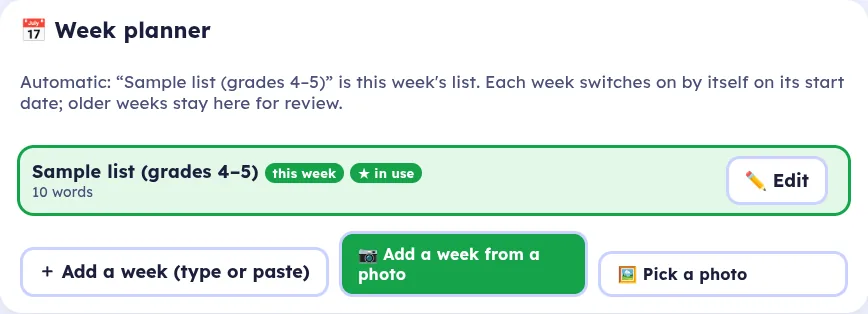
Photo import: read on your device
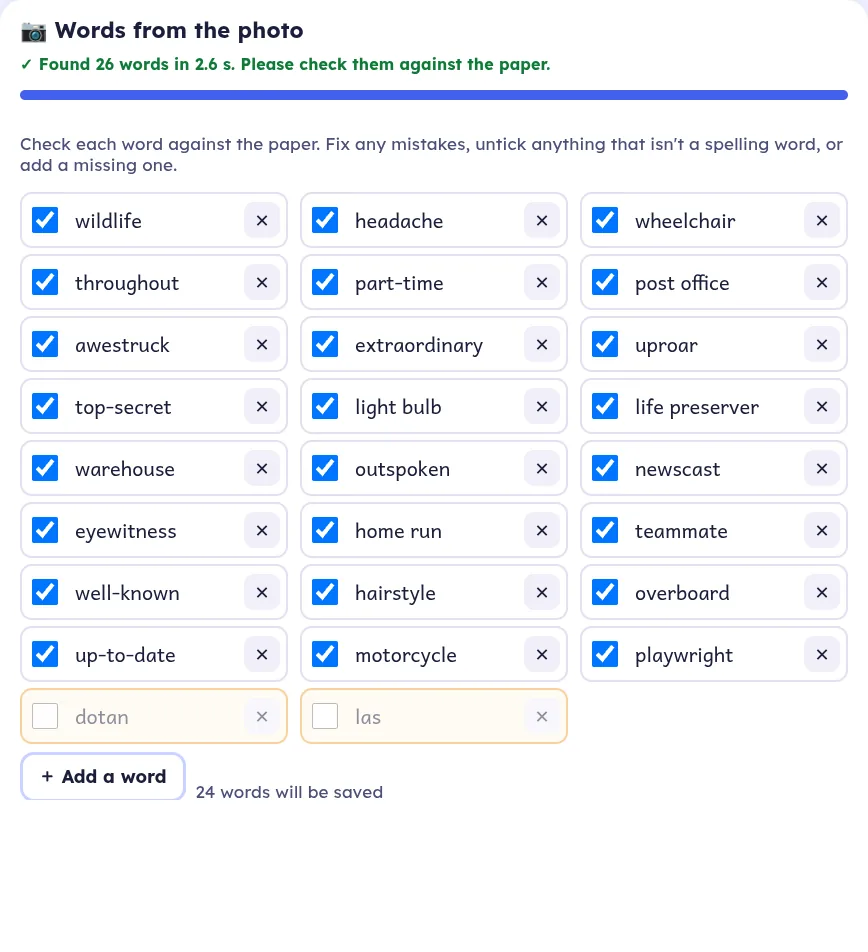
When you use a photo, the words are read on the device itself. The photo is never uploaded. You then review the list: fix any word, untick anything that isn't a spelling word (blurry guesses are shown in orange and start unticked), or tap + Add a word.
How weeks switch over
- Each saved week switches on by itself on its start date, so you can add next week's list early.
- ▶ Use now picks any week right away. 🔀 Use mixed review (all weeks) practises every week's words together. ⏱ Back to automatic follows the calendar again.
- Stars belong to each word, so they carry over if a word shows up again in a later week.
- Spaces and hyphens (like post office or well-known) are kept. In the tile games they're filled in for your child; in Test Day they type them, just like on the real test.
To edit a list later, use Weekly word list further down the Grown-ups area: pick the week, change the words, and tap 💾 Save this week.
Only grown-ups add words. Weekly words come from you: typed, pasted, or read from a photo of the list. Your child just plays.
4 The game modes
Same words, different games, so practice doesn't get boring. Tap a mode on the menu to start a round.
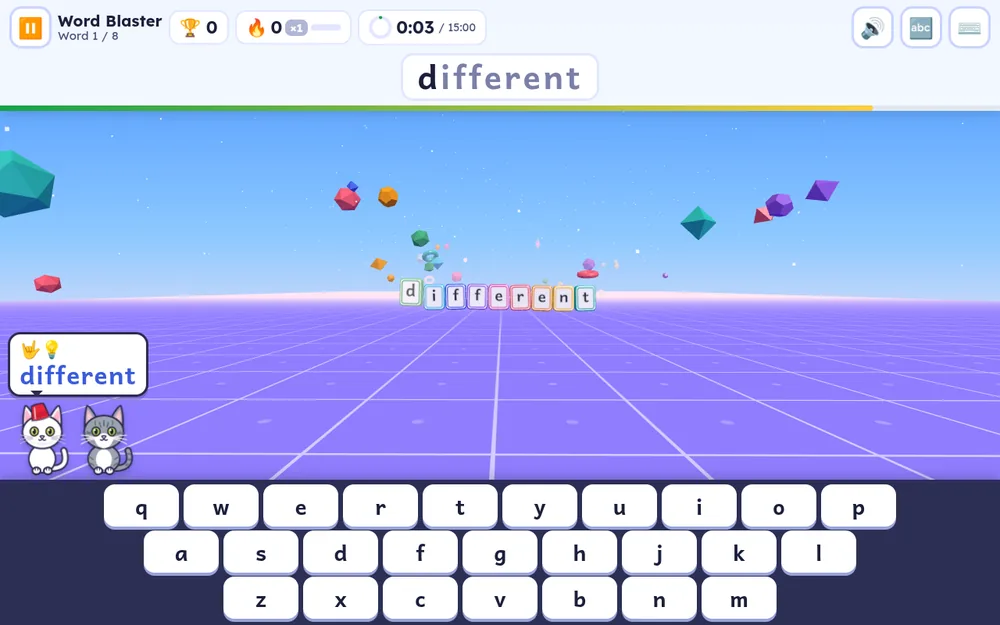
🚀 Word Blaster
The word flies in as letter tiles. Your child types it and every tile blasts apart. Faster letters and long combos score more, and missed words come back later in the round.
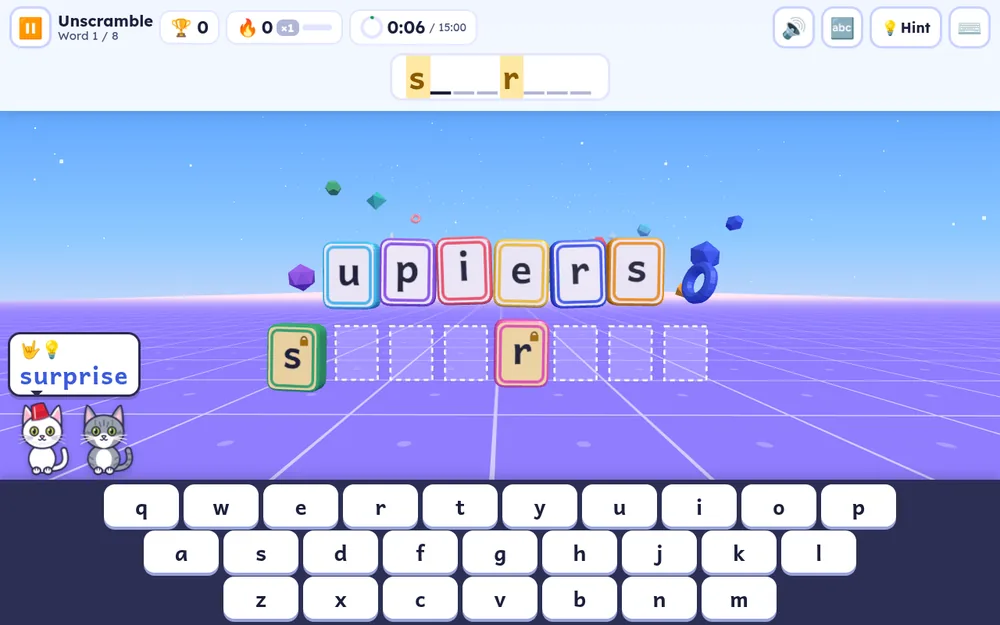
🧩 Unscramble
Tap or type the jumbled letters back into order. Built-in help: starter letters, a hint button, and helper letters (details below).
⚡ Flash (memory)
A quick peek at the word, then spell it from memory. It unlocks for each word after it has been blasted 3 times in Word Blaster.
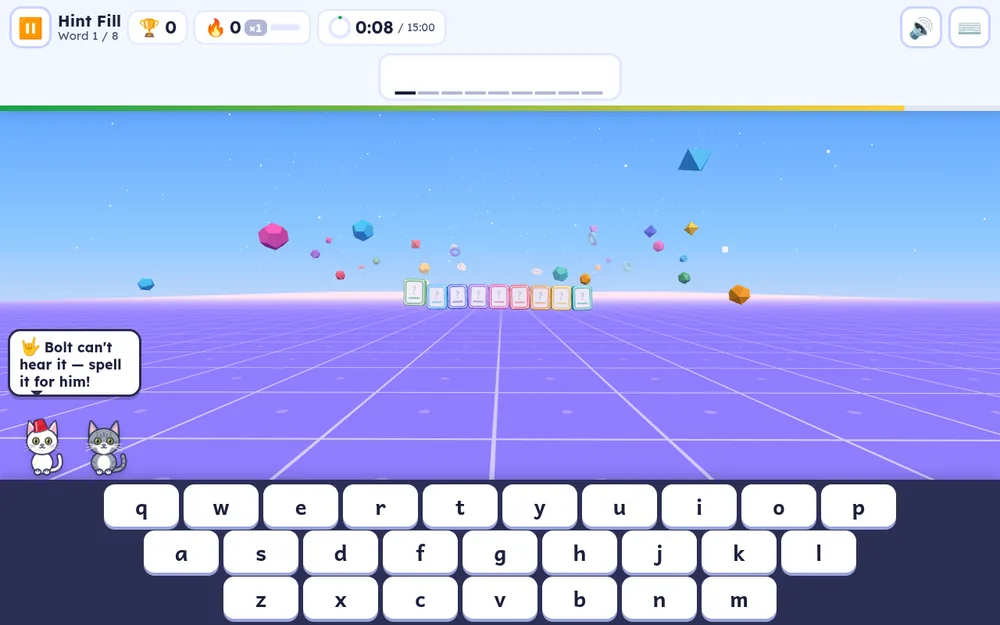
🔍 Hint Fill
Hear the word and fill in blank tiles. A letter or two pops in as your child gets close.
📝 Test Day
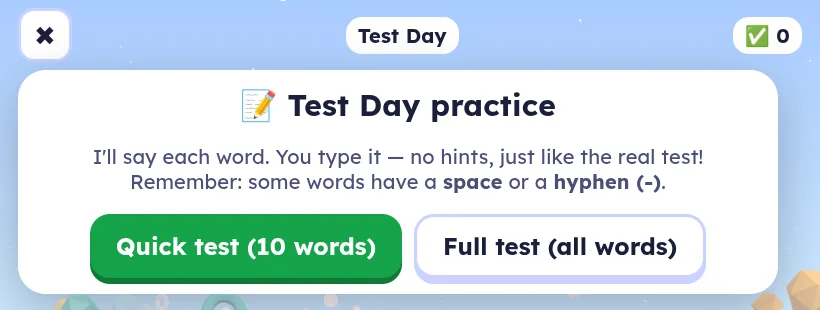
A practice quiz just like the real test: hear it, type it, no hints, and a score at the end. Choose a quick test (10 words) or a full test (all words).
🎯 Daily Challenge
Five of the week's words each day: an easy warm-up first, then the day's game (Word Blaster, Hint Fill or Unscramble) with only a few mistakes allowed.
Unscramble's built-in helper
- Starter letters: the first letter, plus about one letter in four for longer words, start locked in place (gold tiles with a padlock).
- 💡 Hint: reads the word aloud, then again slowly.
- Helper letters: after every 3 wrong tries, the next letter drops into place.
- Fading: after two clean solves of a word, it starts with one fewer starter letter next time, so help shrinks as your child improves.
- Stars: ⭐⭐⭐ solved on their own, ⭐⭐ with a few slips, ⭐ with helper letters. Every word still counts as solved.
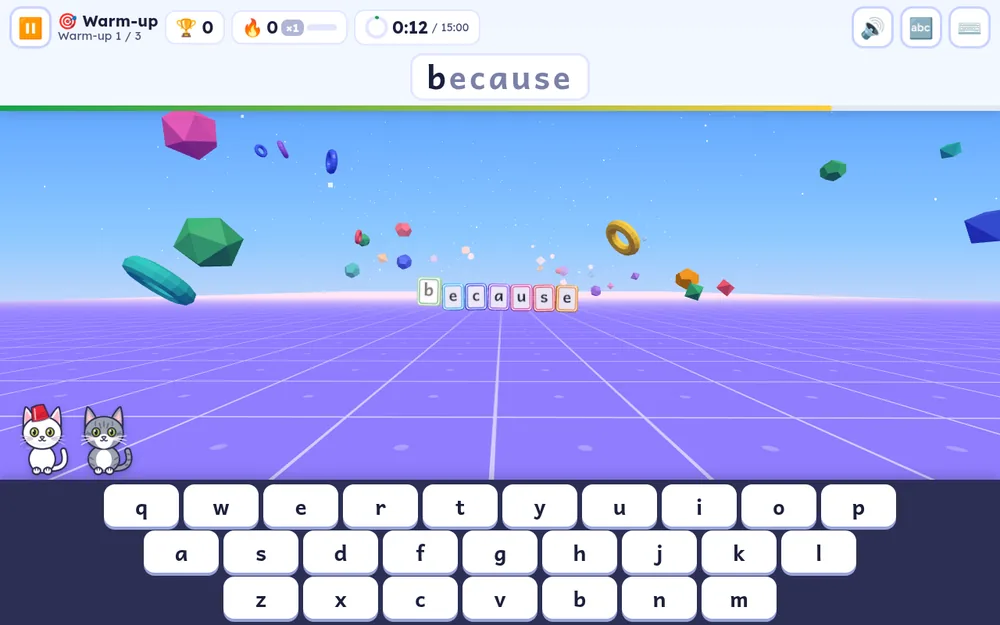
On the menu, 🎯 My weakest words narrows practice to the words that need the most work. The 🔊 button replays the word, and you can hear any word on the menu by tapping it.
5 Stars, stickers & cats
- Stars: each word collects stars as it's spelled correctly. The ⭐ counter on the menu shows progress through this week's list.
- Daily goal & streak: the default goal is 15 minutes a day (you can change it in Grown-ups › Settings › Daily play goal). Time only counts while a round is actually being played, not on menus, when paused, or during button mashing. Reaching the goal wins the sticker of the day and keeps the streak going.
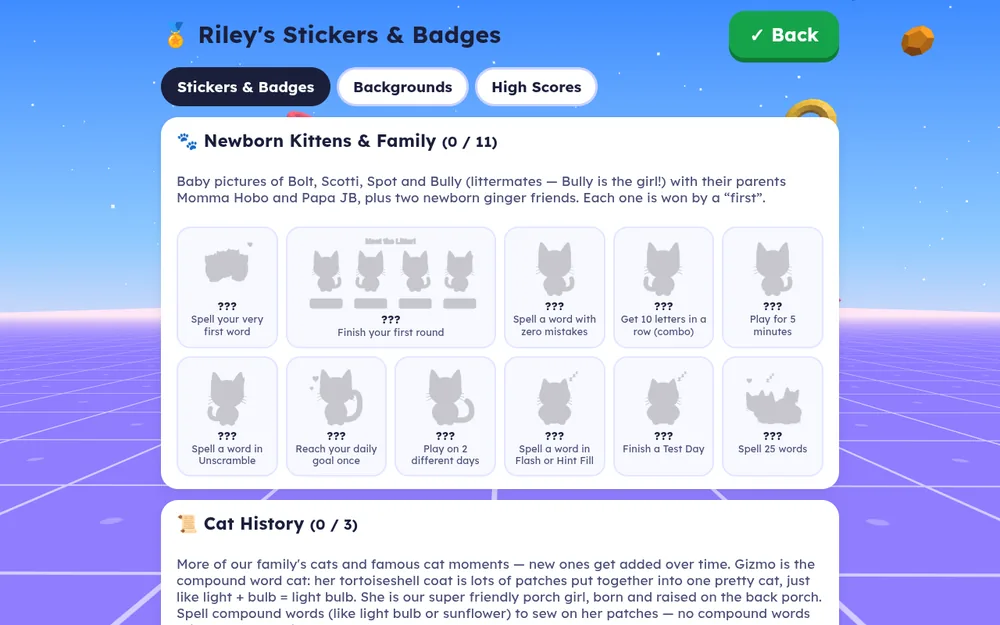
- Stickers & badges: 🏅 My Stickers & Badges opens the sticker book: cat stickers won by “firsts” (first word, first round, a 10 combo, and so on), badges, unlockable backgrounds and high scores.
- The cats: every sidekick is one of our family's real cats, drawn as a cartoon. Bolt (who is deaf) signs along with each word, Scotti cheers, and the kittens curl up to say “better luck next time”. The cats are just for fun and never change scores.
- Gizmo's Bonus: Gizmo is the compound-word cat. Each different compound word your child spells (like light bulb or sunflower) sews a patch onto her coat, and 6 patches win her sticker. If this week's list doesn't have enough compound words, a Gizmo's Bonus card appears on the menu with 6 kid-friendly compound words, so she can always be earned.
- No punishments: points are never taken away. Silly button mashing just gets a playful warning.
6 More than one child
Each child gets their own player with their own lists, stars, stickers and play time on the same device.
Add a player
- Hold 👪 Grown-ups: hold 2 seconds.
- In 👥 Players, type the New player's name (a first name or nickname) and pick a Grade (optional).
- Tap + Add player. A short setup follows: add their first list, then tap ▶ Start playing!
Switch players
On the menu, tap the big name chip (the picture and name at the top, for example Riley switch ▾), then tap a name under Who's playing? You can rename or remove players in Grown-ups › 👥 Players.
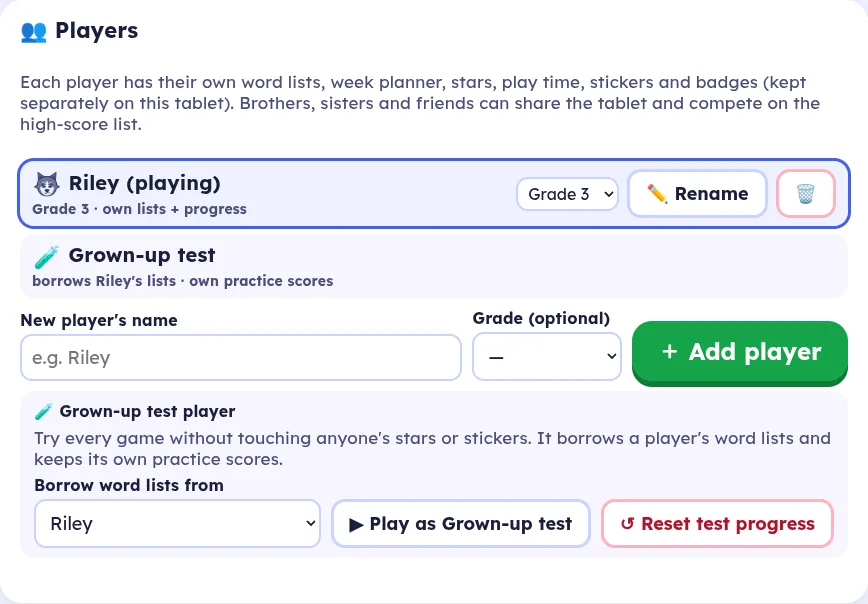
🧪 Grown-up test: want to try a game without touching your child's stars? Tap the name chip, then press and hold the 🧪 Grown-up test tile for about 2 seconds. A yellow banner shows while test mode is on, and its ↩ Back button returns to your child's player.
7 Picking an avatar
Every player has a picture next to their name. There are 74 to choose from in five groups: Cool (made with older kids in mind: gaming headsets, a drum kit, a wolf and more), Animals, Sports, Fun Stuff and Nature & Space. Kids can change it whenever they like. It never affects stars or progress.
- On the menu, tap the name chip (the picture and name at the top, for example Riley switch ▾).
- Under Who's playing?, tap 🎨 Pick my avatar.
- Pick a group along the top (Cool is first), then tap a picture. It's saved straight away, and the new picture shows on the menu.
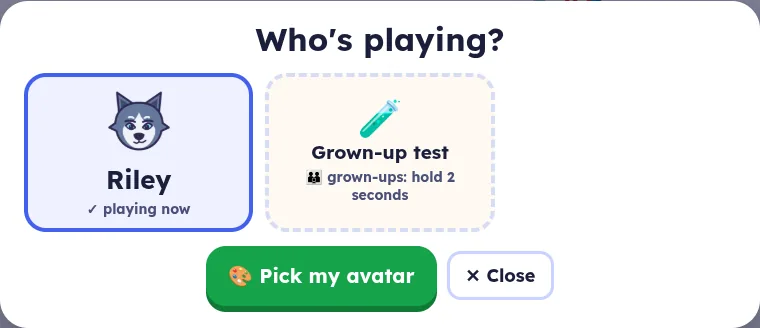
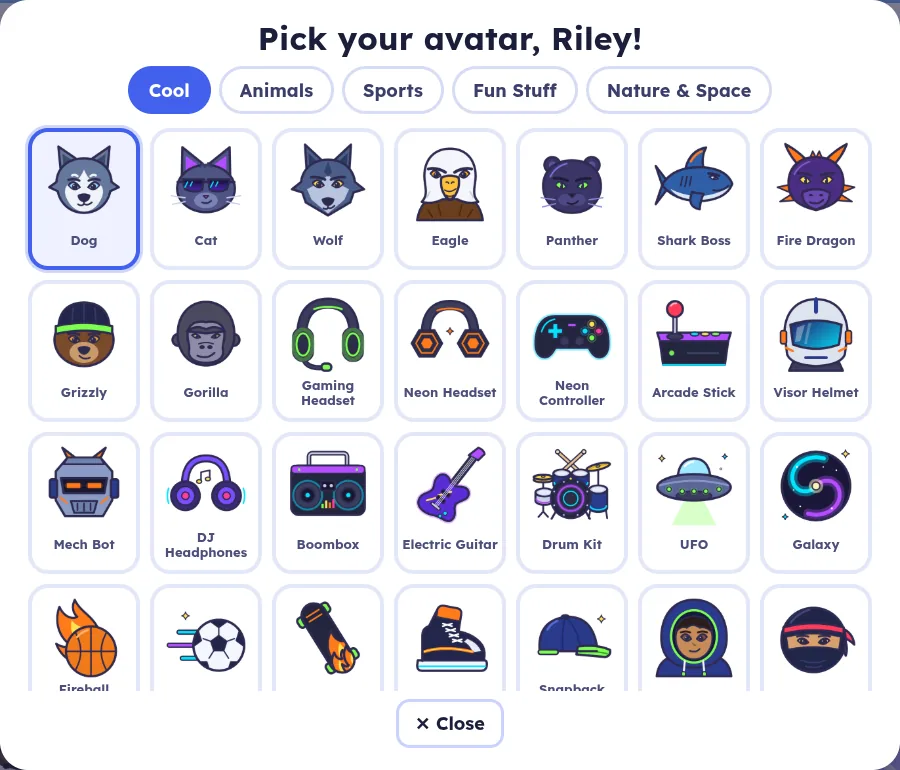
More than one child? Switch to that child first (tap the name chip, then their name), then pick their avatar. With a family account, the avatar goes with your child to every signed-in device, just like their stars and lists.
8 The Grown-ups area
Press and hold 👪 Grown-ups: hold 2 seconds at the bottom of the menu until it fills. When you're finished, tap ✓ Done. Inside you'll find:
| Section | What it's for |
|---|---|
| 👥 Players | Add, rename or remove players, and set up the Grown-up test. |
| ☁️ Family account | Optional sign-in to sync players across devices (section 9). |
| 📅 Week planner | Add weeks by typing, pasting or photo, and choose which week is in use. |
| 📝 School test results & goals | Optional and off until you turn it on. Enter the graded test, set a goal like “18 out of 20”, and see a week-by-week chart. |
| Weekly word list | Edit a saved week's words, name and start date. |
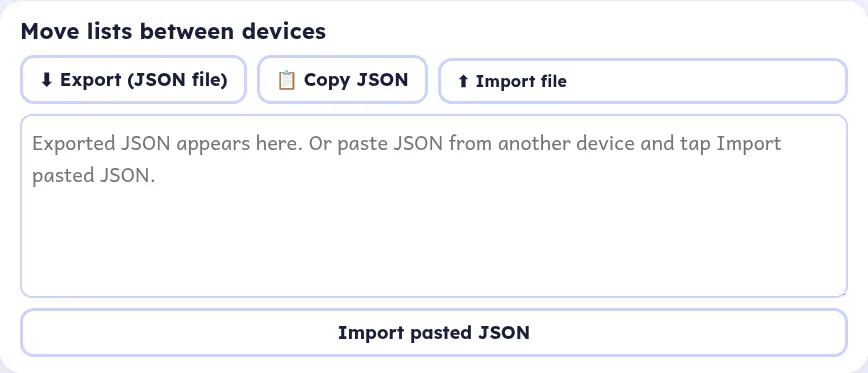
| Move lists between devices | Export and import a backup (section 10). |
| Settings | Player name, words per round, word speed, keyboard, voice choices, daily play goal, and 🔊 Test voice. |
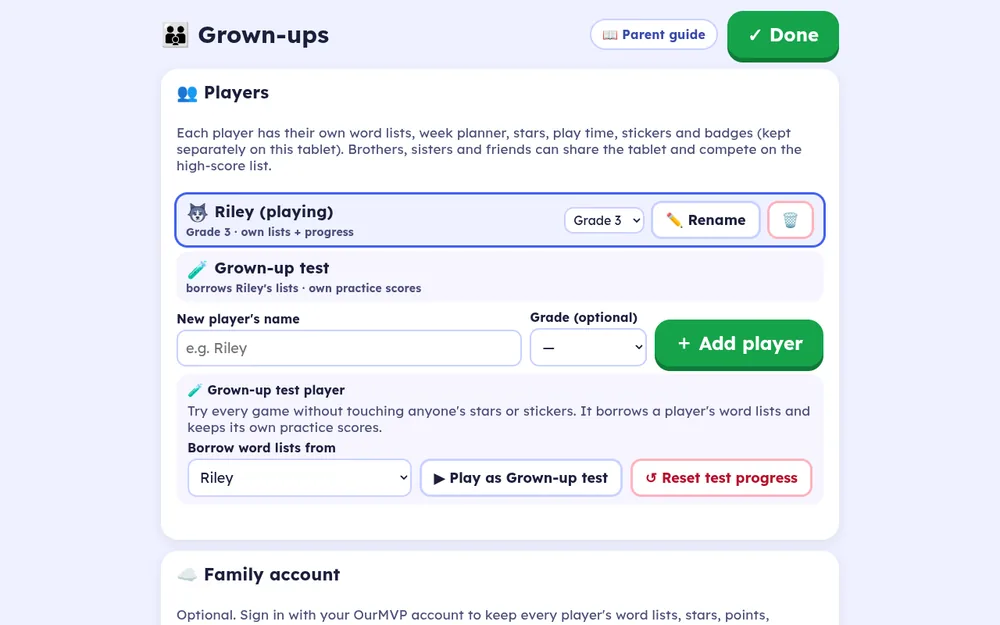
On the website there's also a 📖 Parent guide link at the top of the Grown-ups area that opens this page.
9 Family account & sync (optional)
Available for invited families during testing. Public sign-up is turned off for now. Without an account, everything works and is simply saved on that one device.
A family account lets the same players, lists and progress follow your child between devices, for example a tablet at home and a laptop.
Sign in on a device that already has players
- On the menu, hold 👪 Grown-ups: hold 2 seconds.
- Scroll to ☁️ Family account.
- Type the grown-up's Email and Password, then tap Sign in.
- The players on this device are linked to your account and synced. A backup of this device's data is kept in the browser before the first sync.
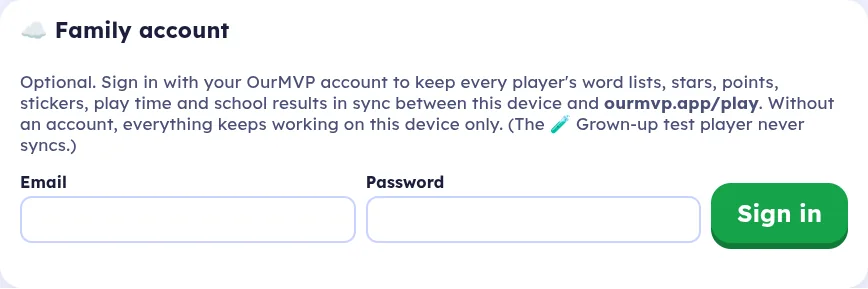
Sign in on a new device (do this before typing a name)
- Open ourmvp.app/play on the new device.
- On the Welcome card, press and hold 👪 Have a family account? Grown-ups: hold to sign in.
- Enter the email and password and tap Sign in. Your children's players appear. Pick one and play.
How syncing works
- It syncs when you sign in, after every round, on the menu (at most once a minute), and whenever you tap ⟳ Sync now.
- A small cloud icon next to the name shows the state: a check means synced, dots mean syncing, ! means an error, and a slash means offline. Play carries on offline and syncs later.
- Progress is combined, never thrown away: stickers and badges from both devices are kept, stars keep the highest, and play time from each device counts once.
- Sign out syncs first, then stops. Sign out & remove the account's players from this device also clears those players from that device (handy for a shared or school device).
10 Backing up your progress
Without a family account, progress lives only in that browser on that device. Clearing the browser's data, or using a private/incognito window, erases it. Make a backup now and then:
- Hold 👪 Grown-ups: hold 2 seconds and scroll to Move lists between devices.
- Tap ⬇ Export (JSON file) to download a backup file of every player, or 📋 Copy JSON to copy it.
- To restore it, or to move to another device, open the same section there and tap ⬆ Import file, or paste the text and tap Import pasted JSON. The same player is merged, not doubled.
11 Privacy: what is and isn't stored
Kids never have accounts. A player is just a first name or nickname you choose, plus an optional grade. There are no ads, no trackers or analytics, and we don't sell data.
| Situation | Where your family's information lives |
|---|---|
| No family account (the default) | Everything (player nicknames, grades, word lists, stars, stickers, play time and settings) is saved only in that browser on that device. Nothing is sent to our server. |
| Photos of word lists | Read on the device and never uploaded. Only the words you confirm are saved. |
| Family account (invited families) | The grown-up's email and password are used to sign in. The players' nicknames, grades, avatars, word lists, progress, stickers, settings and optional school test results are stored on the OurMVP server so they can sync. They're sent over an encrypted (HTTPS) connection and are tied to that account. |
| Classroom mode | Nothing about students is stored. Names and scores live only in the server's memory during the class and are deleted when it ends (see the teacher guide). |
| Read-aloud | On the website, cheers and letters use recorded voice clips, and your list's words use your device's own built-in voice. |
Questions, or want your family account's data removed? Email support@ourmvp.app.
12 Classroom mode
If your child's teacher runs a Word Blaster class, your child taps 🏫 Join Class on the menu (or 🏫 Join a Class on the Welcome card), types the code from the board and their first name, and taps Join! ➜. No account is needed, class rounds don't change your child's own stars or stickers, and nothing about the class is kept afterwards. Teachers can read the teacher guide.
13 FAQ & troubleshooting
The game looks out of date, or a new feature is missing
Reload the page (pull down on a tablet, or press the browser's reload button). If it still looks old, close the tab and open ourmvp.app/play again. Reloading never loses progress.
The voice sounds robotic, or I can't hear the words
On the website, your list's words are spoken by the device's built-in voice, so they sound different on each device. Check the volume and the silent switch, then use Grown-ups › Settings › 🔊 Test voice. You can pick a different backup voice and speed there.
I set up a new device and my child's progress isn't there
With a family account, sign in before typing a name: hold 👪 Have a family account? Grown-ups: hold to sign in on the Welcome card. Without an account, export a backup on the old device and import it on the new one (section 10).
Progress disappeared
Progress is saved in the browser, so clearing site data or using a private/incognito window removes it. Restore from your last export, or sign in to your family account if you have one. Export a backup every few weeks.
Why is Flash greyed out?
Flash unlocks for each word once it has been blasted 3 times in Word Blaster, so your child sees the word a few times before spelling it from memory.
The photo didn't read some words correctly
Photos work best flat, in good light, and straight on. You can always fix or untick words before saving, or add a missing one with + Add a word.
The Grown-ups button doesn't open
It's a press-and-hold button: keep your finger on it for 2 seconds until it fills. A quick tap only shows a reminder.
How do I contact you?
Email support@ourmvp.app. Word Blaster is a test app and we'd love your feedback.
Ready? Open Word Blaster on your child's device and add this week's words.
▶ Open Word Blaster